Business & Leadership Coaching
Your Personal Board of Directors
Advice on leading teams, growing your business, and navigating your career
Grounded in 500+ business books, top podcasts, and Ivy League case studies — every answer cites its sources
What's inside
Real answers to the hardest problems in business
How to delegate when you don't trust your team yet. How to grow revenue when the market is down. How to give feedback that doesn't break relationships. Thousands of answers from the leaders who figured it out first.
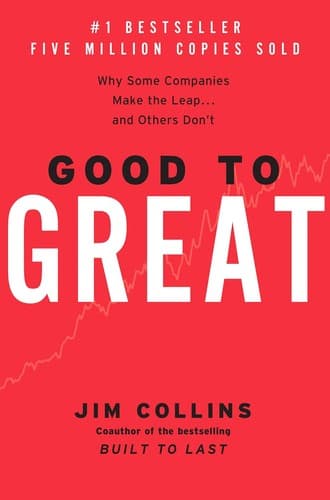
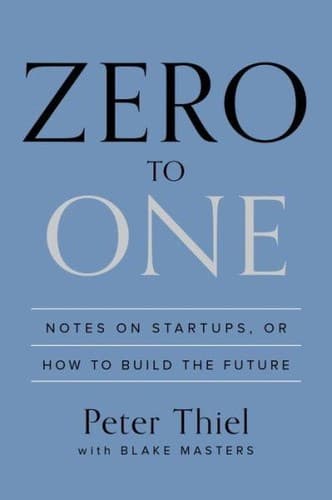
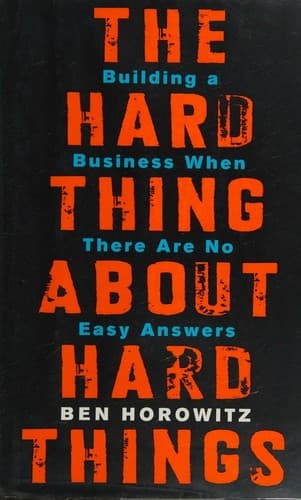
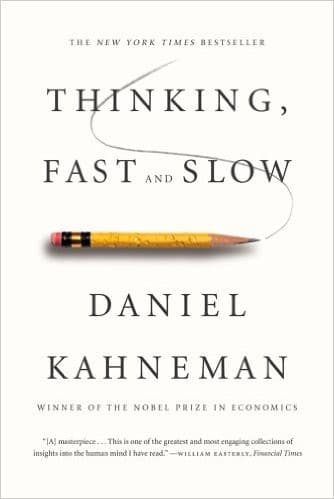
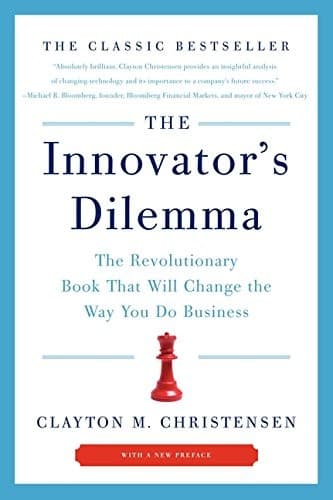
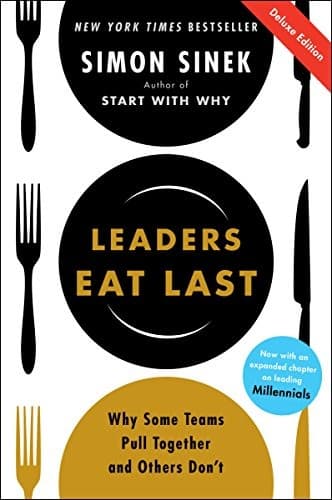
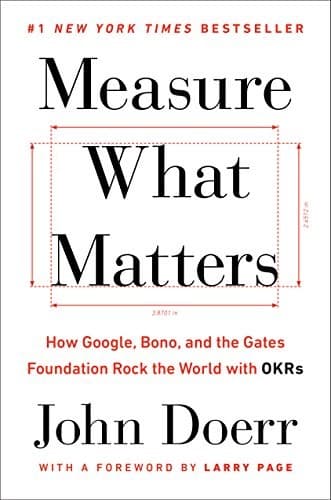
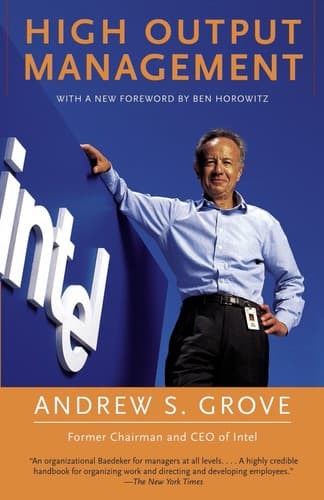
Curated book library
Podcasts updated weekly
Lenny's Podcast

How I Built This
Masters of Scale

Acquired

The Twenty Minute VC

The a16z Podcast

First Round Review

Y Combinator
The NFX Podcast

Startups For the Rest of Us
Leading & developing teams

How Google Sold Its Engineers on Management
David A. Garvin

Netflix
How Netflix Reinvented HR
Patty McCord

Microsoft
How Microsoft Uses a Growth Mindset to Develop Leaders
Carol Dweck, Kathleen Hogan

Uber
The Truth About How Uber's App Manages Drivers
Alex Rosenblat

Zappos
How I Did It: Zappos's CEO on Going to Extremes for Customers
Tony Hsieh

Pixar
How Pixar Fosters Collective Creativity
Ed Catmull
Growing your business

Tesla
How Tesla Sets Itself Apart
Lou Shipley

Amazon
Should Your Company Sell on Amazon?
Ayelet Israeli, Leonard A. Schlesinger

Spotify
Spotify: Becoming a Platform for Music and Podcasting
Ben Gilbert & David Rosenthal

Airbnb
Airbnb's Effect on Rents and Neighborhood Culture
Kyle Barron, Edward Kung, Davide Proserpio

Nike
High-Performance Marketing: An Interview with Nike's Phil Knight
Geraldine E. Willigan

PayPal
PayPal's CEO on Creating Products for Underserved Markets
Dan Schulman
Navigating organizational challenges

OpenAI
OpenAI's Failed Experiment in Governance
Noam Wasserman

Apple
A Plan Is Not a Strategy
From HBR

Ford
Autonomy: The History of the Future of Transportation
Lawrence D. Burns
Mattel
Blank Space: The Rise of Consumer Capitalism
W. David Marx

Boeing
Inside Boeing's Big Move
Andrea Ovans

Wells Fargo
The Leadership Blind Spots at Wells Fargo
Susan M. Ochs
How it works
A coaching process that scales
Describe your situation
Ask what you'd ask a mentor who knows every company
Get advice you can trace
Every recommendation links to a specific source
Rehearse before the real thing
Practice with AI that stays in character
Walk out with a plan
Turn conversations into step-by-step playbooks
Response types
Scripts. Frameworks. Decision matrices.
Scripts
YOU
"I want to talk about the last two sprints. Specifically, the missed deadline on the API migration and the production outage on March 12."
IF THEY PUSH BACK
"I hear you — your migration work was strong. I'm not questioning your ability. I'm flagging a pattern so we can fix it together."
Decision Matrix
PLUS
Promotes high performer
Retains key talent
MINUS
Lose top IC output
No mgmt experience
INTERESTING
Could co-lead for 90 days
Mentorship pairing
Reflection Prompts
Am I giving feedback to help them, or to vent my frustration?
What would I want to hear if I were in their position?
Have I given them enough context to actually improve?
Deep Research
Research on new-manager transitions shows the first 90 days are decisive. [1] Watkins argues that new leaders must "secure early wins" while building coalitions, [2] but Goleman's work suggests emotional intelligence matters more than quick results. [3]
Not just for your team
For your career, too
PathMBA isn't only about managing others. Many of our users come to prepare for interviews, plan career moves, and find mentorship frameworks for themselves.
Preparing for a leadership interview
Get frameworks for answering strategy and behavioral questions from the best management thinkers
Building your personal board of advisors
Learn how top operators curate mentors, sponsors, and peers who accelerate their growth
Navigating a professional transition
Whether you're moving from IC to manager or switching industries, get advice grounded in real case studies
Making the case for a promotion
Build a compelling narrative using frameworks from negotiation and organizational behavior research
Capabilities
The complete toolkit
“I promoted my best IC to manager and she struggled for months. I wish I had a playbook for that transition.”
— VP Engineering, Series B SaaS
“My boss doesn't have time to coach me. I needed a place to get real management advice without waiting for the next offsite.”
— Product Manager, Fortune 500
“I was running the same 1:1s for two years. One conversation here changed how I give feedback to my entire team.”
— Engineering Manager, Growth-stage startup
The advice you need, from the leaders who've been there
Sign up free. No credit card required.
Start a conversation